I have two questions.
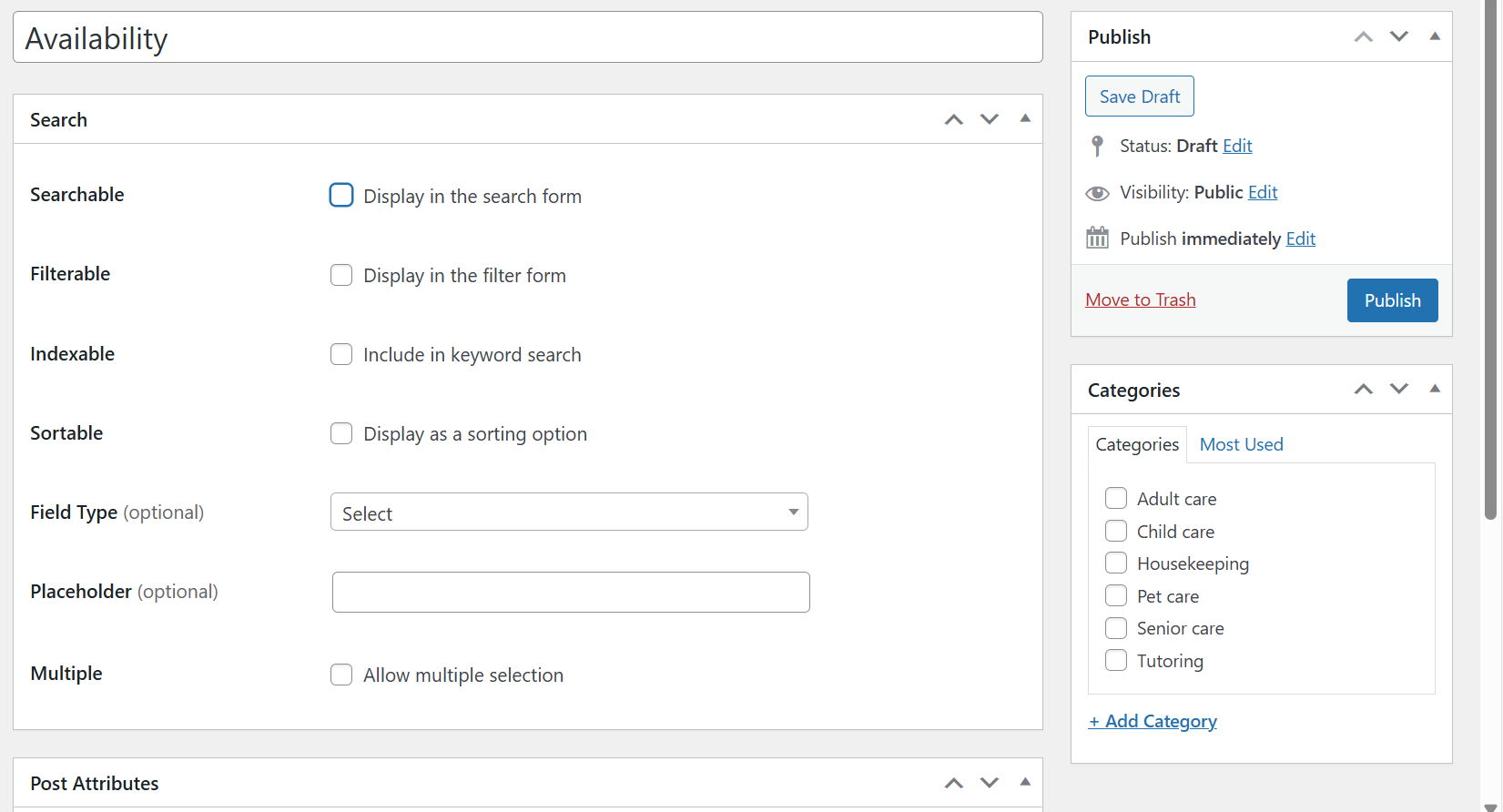
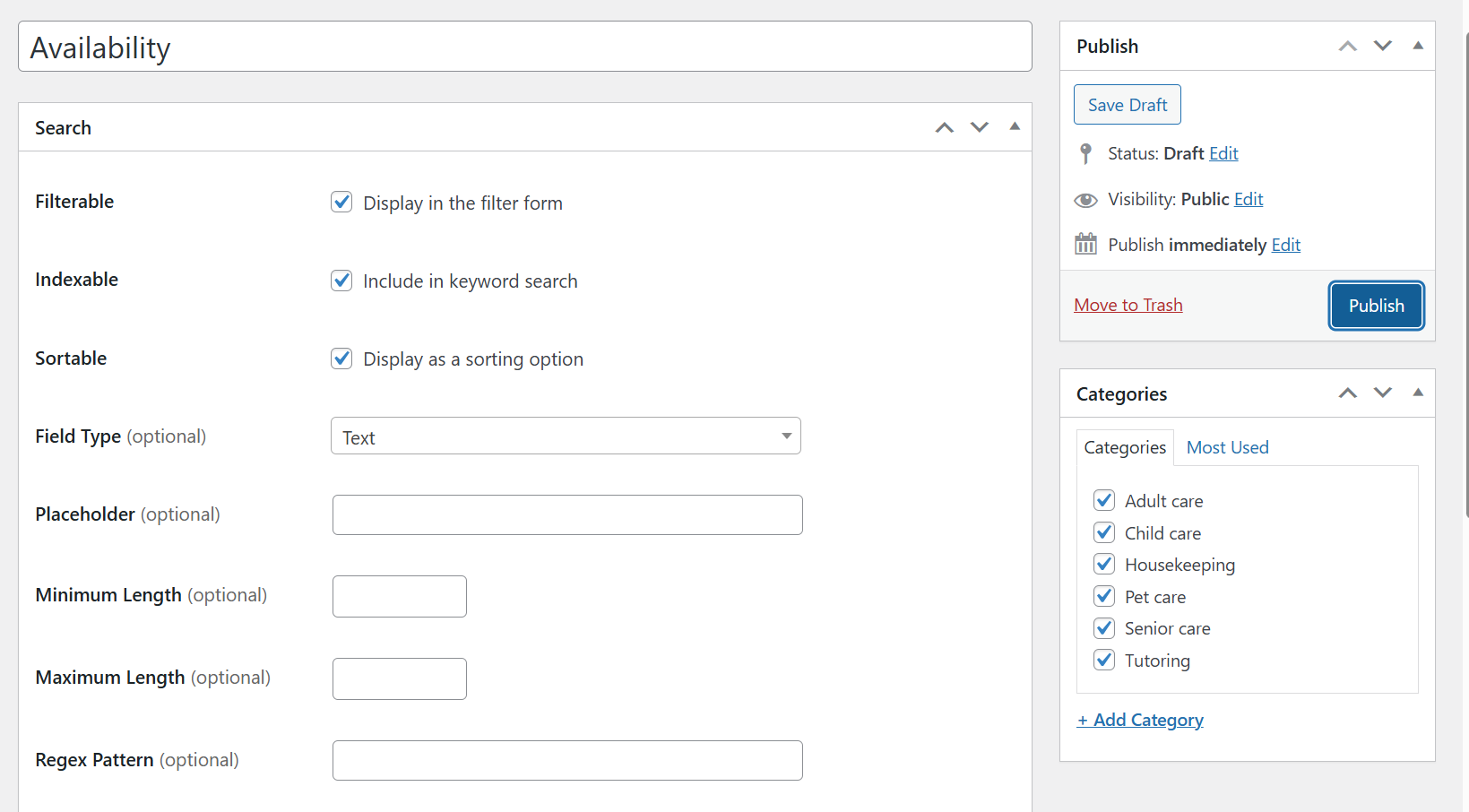
First, I’ve created a few listing attributes (such as “Availability” and “CPR Certified”) and assigned them to all relevant categories. However, even after saving and attempting to publish them, they remain in Draft status and do not display on the front-end filter form. And when they are published, I still don’t see them in the front end.
Here are a few things I’ve already tried:
Checked all filter and search options in the attribute settings.
Assigned the attributes to all categories.
Clicked “Publish” multiple times, but nothing happens — it remains in Draft mode.
I’m not sure if I need to activate anything before publishing.
Could this be a bug or a configuration issue on my end? I would appreciate any guidance or troubleshooting steps you can provide.
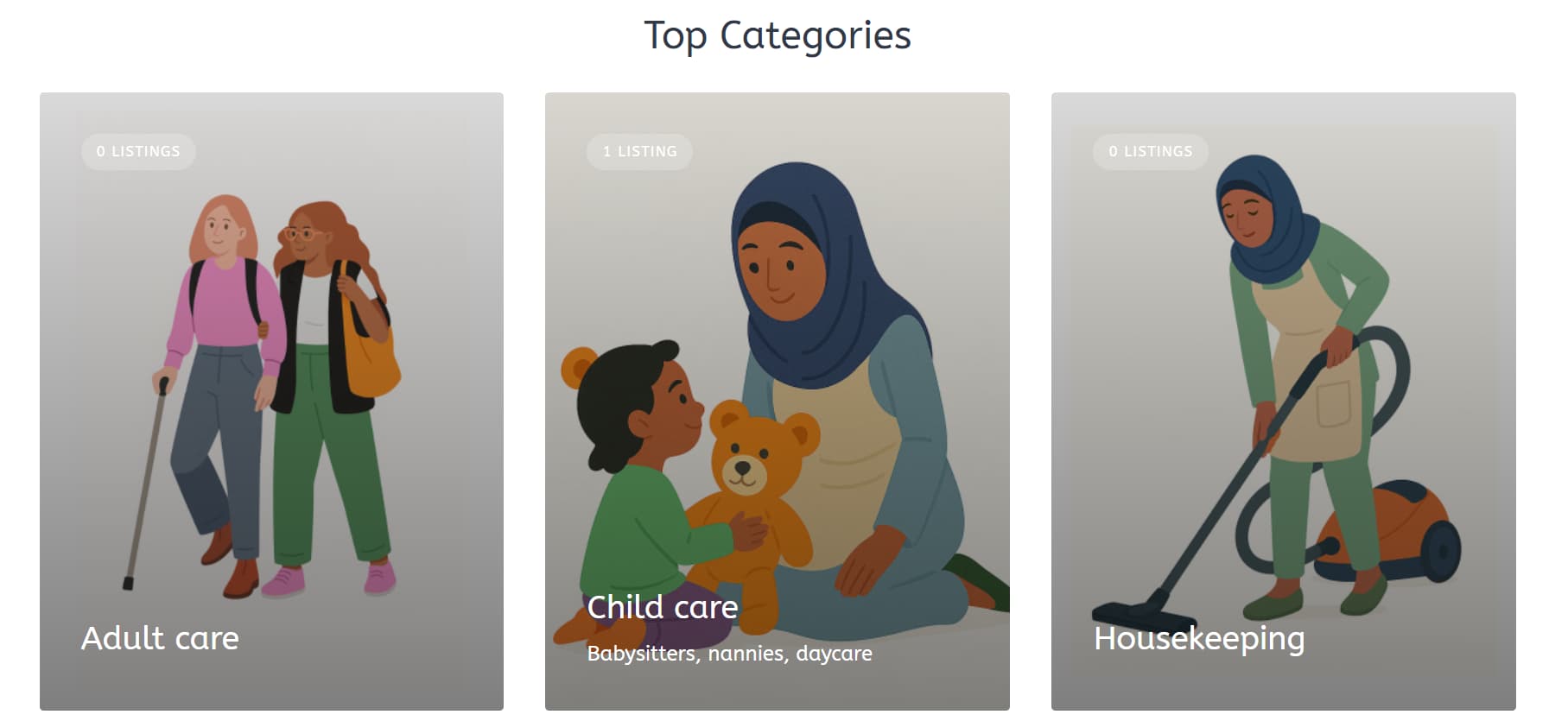
Second, is there a way to make the background of image brighter? All the background of my images are gray.
Please disable third-party plugins and customizations (if there are any) and check if this issue persists. If you use a caching plugin, make sure that caching is disabled for logged-in users.
If it doesn’t resolve the issue, please share screenshots of the attribute settings so we can review the configuration.
Hi, Kseniia, thank you for your response. I did everything you said and then some, but still nothing seems to be working. I even reached out to Bluehost, just in case, before I reached out to you, to see if they could help. I’m attaching two images per your request. As you can see, when I went to add an attribute, the choice to “add it on the front-end” is not even available. And the second image is of the second question I previously asked about not being able to make the background brighter/lighter of my images. Would it be possible to talk to you over the phone to get more guidance? This is very frustrating. Thank you for your help in advance.
Have you changed any settings? From the screenshot, I see that Availability is not marked as searchable, so in that case it wouldn’t appear in the filter form.
Could you please share a full-screen screenshot of attribute settings, and also a screenshot where the filter form is visible?
Have you also tried adding a new custom attribute? Is the editing block missing in that case as well?
My first guess would be that when creating custom attributes of the Select field type, the default behaviour is that you first need to publish the attribute and then add options for selection.
Please use this CSS snippet to change the background color [you can replace the value with your desired color]. This snippet can be added in WordPress Dashboard > Appearance > Customize > Additional CSS:
.hp-listing-category.hp-listing-category--view-block {
	background-color: white !important;
}
Hi, again and thank you. I’m a bit confused about some things. Would it be possible to do a zoom call so you can explain in real time for me? I apologize for the inconvenience. Also, I tried the background code you gave me and it didn’t work. Please let me know if you’d be willing to do the zoom call. Thank you.
We provide support services via email and through our community forum.
To resolve this issue, please ensure that the editing section is enabled in Screen Options [screenshot here]. This section contains required fields that may not have been filled because the block is currently hidden from view. Once you make this section visible, the attribute will appear in the form and you’ll be able to complete the required fields. You can also follow this guide on How to add listing attributes - HivePress Help Center.
Following these steps should resolve the issue. Additionally, we recommend reviewing any setting changes to ensure you understand their impact before applying them.
Please use this code snippet to change the background:
Thank you. Yes, I went ahead and did that. Still no change. Is there a certain “plug in” I need to install to get them to show, besides the hivepress plugin itself? Should I deactivate and reinstall it again? Has anyone experience this issue before?