I’m using RentalHive together with HivePress and WooCommerce for a car rental website. In my listings I’ve added several custom attributes (brand, transmission, fuel type, price, extras, etc.). When customers make a booking, they also select a rental period.
The issue is that these booking details are not being passed to the WooCommerce emails that are sent when an order is created. In the order confirmation email, I can’t see which car was booked, which extras were selected, or what the rental period is.
Since the final reservation and payment are processed through WooCommerce, I want all RentalHive / HivePress booking details (especially the rental period and extra options) to appear inside the WooCommerce order and email notifications.
My question: How can I pass the booking details from RentalHive/HivePress into the WooCommerce order so they appear in WooCommerce emails? Is there a hook, snippet, or setting that allows these details to sync with WooCommerce?
WooCommerce emails serve primarily as payment receipts, so we recommend using HivePress notifications for booking confirmations instead. You can use and customize the “Booking Confirmed” email in HivePress > Emails, where you’ll find all available tokens listed, including custom attributes, which you can use to personalize the email to your needs. Regarding the WooCommerce email, you can either customize it to look like a simple payment receipt or disable it entirely, if all bookings on your site require payment, you can include payment confirmation text directly in the “Booking Confirmed” email. This approach gives you full control over your messaging and ensures your booking confirmations contain all the relevant information your users need.
Thanks for your explanation. I understand that WooCommerce emails are meant for payments, and HivePress notifications should be used for booking confirmations. However, my use case requires an additional step and I’m not sure how to configure it properly.
Here is what I need:
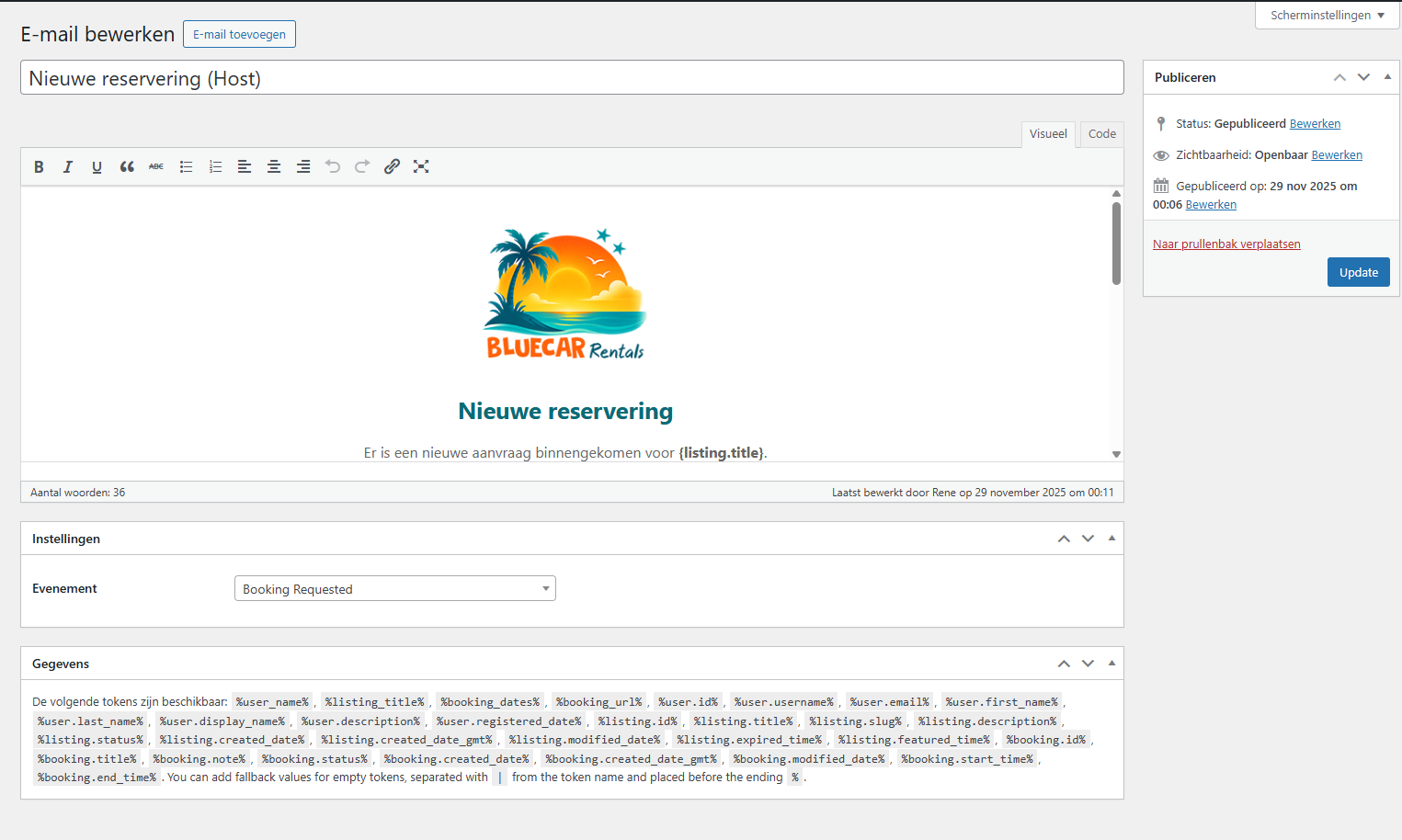
When a customer submits a booking, I want to receive a booking request email immediately (e.g., the “Booking Requested (Host)” email).
I want to manually review and approve each booking, because sometimes a car is not available even if it appears in the system.
Only after I manually confirm the booking, the customer should receive the Booking Confirmed email.
At the same time, I still want WooCommerce to create an order in the background, because eventually the customer does need to pay for the booking once it is approved.
I do NOT want WooCommerce to auto-complete or auto-confirm anything; I want full control over approval.
The problem I’m having right now is:
When a booking is made, the booking in HivePress gets the status UNPAID because WooCommerce creates a “Pending payment” order.
As long as the booking is in the UNPAID status, HivePress does not trigger the “Booking Requested” email.
This means I don’t receive any email notification when a new reservation is made, which defeats the purpose of manual approval.
So my question is:
What is the correct configuration to allow HivePress to send the “Booking Requested” email immediately,
while still allowing WooCommerce to create an order for payment later?
In other words, I want:
Booking request email → YES
Booking confirmed only after manual approval → YES
WooCommerce order still created (so payment can happen later) → YES
Booking should not get stuck in UNPAID, because that blocks notifications.
What settings or workflow do you recommend to achieve this?
Here’s how the current booking flow works, please make sure that the “Booking Requests” checkbox is enabled for your listing.
A customer makes a booking request, and the booking is initially set to Pending.
The vendor receives a “Booking Requested” email (if you don’t receive it, please double-check that the checkbox is enabled and review your email setup). The vendor can then accept the booking, which changes its status to Unpaid.
The customer receives an email notifying that the booking has been accepted and can proceed to payment. When the customer clicks Pay Now, they are redirected to the checkout. A WooCommerce order is created only after checkout, and once the payment is successful, the order status becomes Processing. At this point, the booking is confirmed, and the customer receives two emails: one from WooCommerce about the order, and one from HivePress confirming the booking.
Please let me know if you need further assistance.
Ok, I tried the workflow you described and it indeed triggers several emails (after configuring everything correctly).
However, I have a question about the case where the “Booking Requests” checkbox is left unchecked.
Is there a defined workflow for that scenario as well?
The reason I’m asking is because I actually prefer how that flow works for our use case:
The customer selects a car, chooses the dates and clicks the button to make a reservation.
Immediately the input fields appear, allowing the customer to enter all required details.
The booking is then submitted as a reservation request without any payment step.
We accept payments only when the customer picks up the car, so we don’t use any online payment methods in the checkout. In this setup the booking remains in the Unpaid status, which is correct for us. We manually change the status to “Accepted” once the customer arrives and pays in person.
My question is: Is there any way to trigger the email notifications when using this workflow (with the checkbox unchecked)?
Since we skip the part where the vendor formally “accepts” the booking and no payment is processed online, I think the usual email triggers don’t fire in this flow.
Is there a recommended way to still notify the customer or vendor when a booking is submitted and marked as “Unpaid” without relying on the Booking Request approval step?
You can, for example, use an autocomplete orders WooCommerce plugin or a custom snippet [please take a look at this one], or try a method like Cash on Delivery. In that case, the order will automatically move to Processing or Completed status.
This way, the Booking Confirmed email will be sent immediately, there won’t be an online payment step, and the Unpaid status will be skipped.
 What is the correct configuration to allow HivePress to send the “Booking Requested” email immediately,