I would like to add another listing attribute field that displays information from a shortcode. How do I add the shortcode to my listing attributes?
Hi Dewi,
You can add in your WordPress dashboard, Go to Listings → Attributes → Add New.
Create an attribute (e.g. name whatever you like), choose a field type (Text, Text Area, or whichever fits), and set its “Display” options (where on the listing page it should appear).
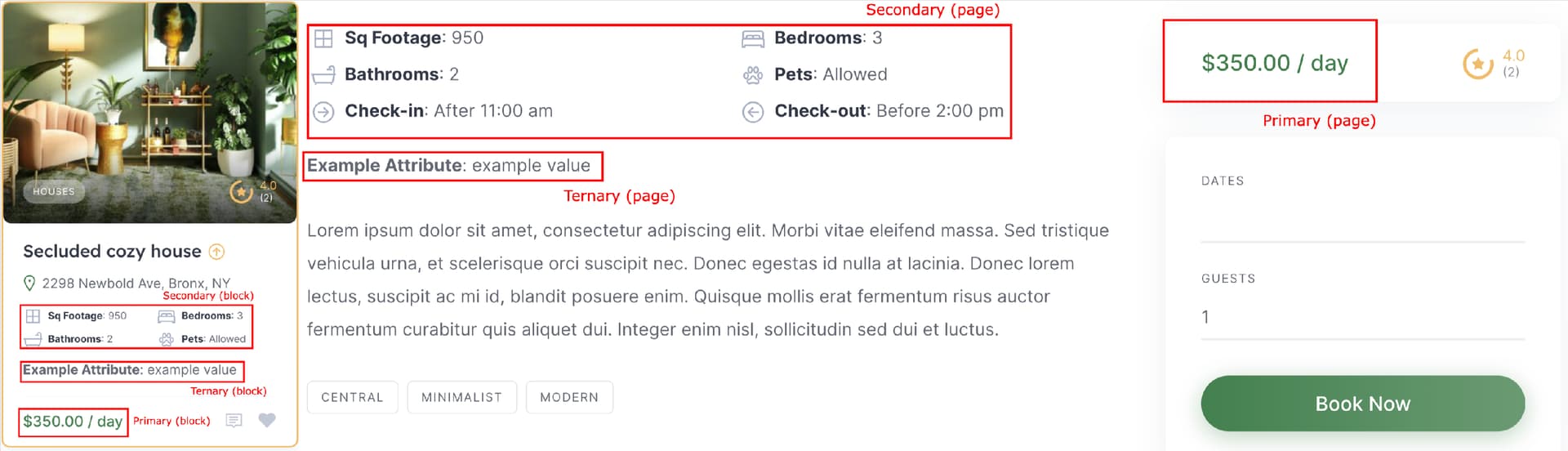
Like Block primary, Page Primary check the attachment once.
1 Like
That process works ok for creating standard types of attribute, but not for embedding shortcode. It’s possible to embed a URL but that’s not what I need. Thanks
Oh sorry my bad, let check this out once
1 Like
Hi,
If you’re looking to use an attribute value within a shortcode, you can achieve this through the Display Format field. Simply add your shortcode with the %value% placeholder, like this:
[my_shortcode my_parameter="%value%"]
This way, if your shortcode needs to display content based on user input, it will work correctly. The %value% will be replaced with the actual attribute value when displayed.
In short, you can accomplish this through the Display Format setting in your attribute configuration.
Hope this helps.
1 Like
This topic was automatically closed 30 days after the last reply. New replies are no longer allowed.