I have enabled login/registration via Google and Facebook.
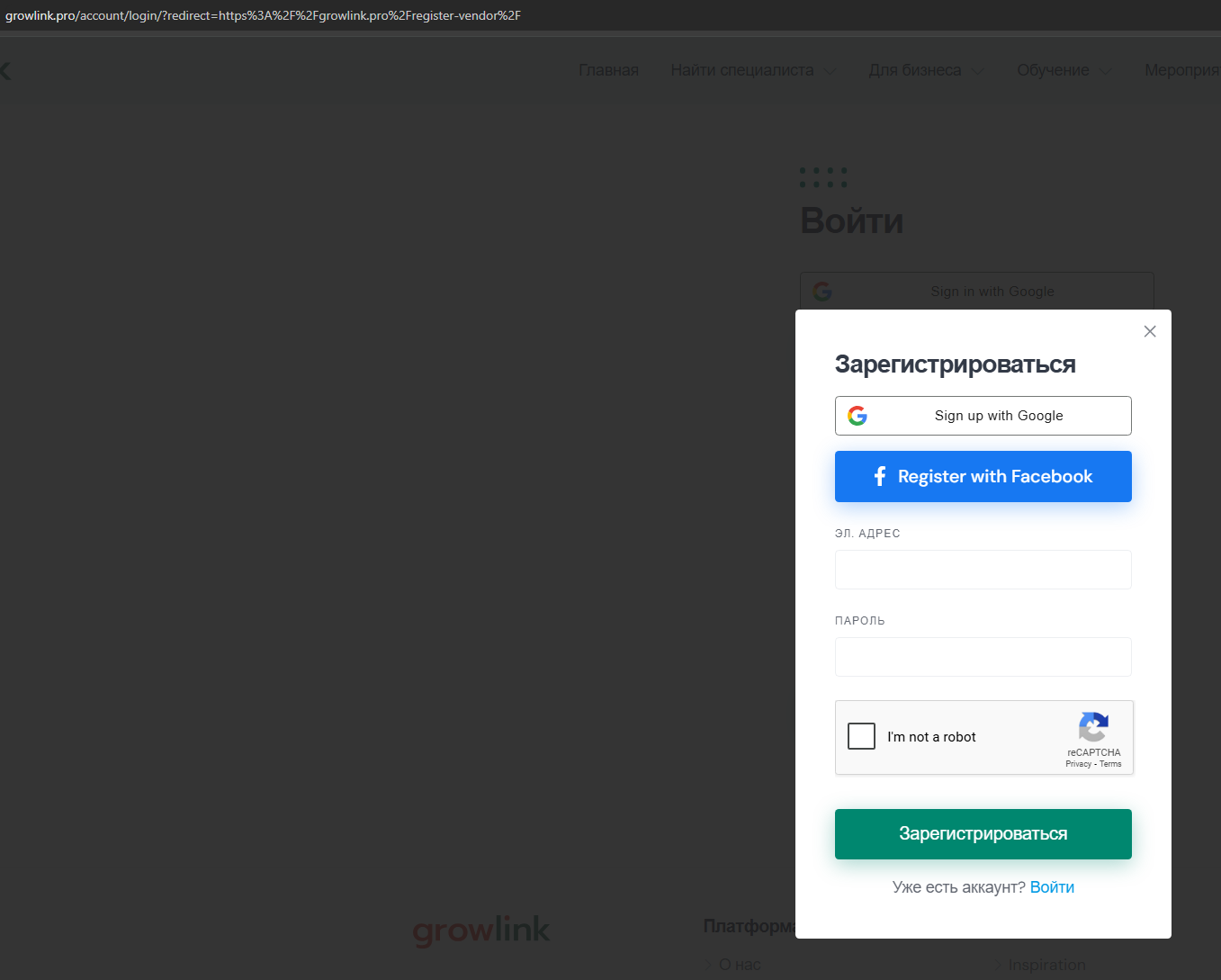
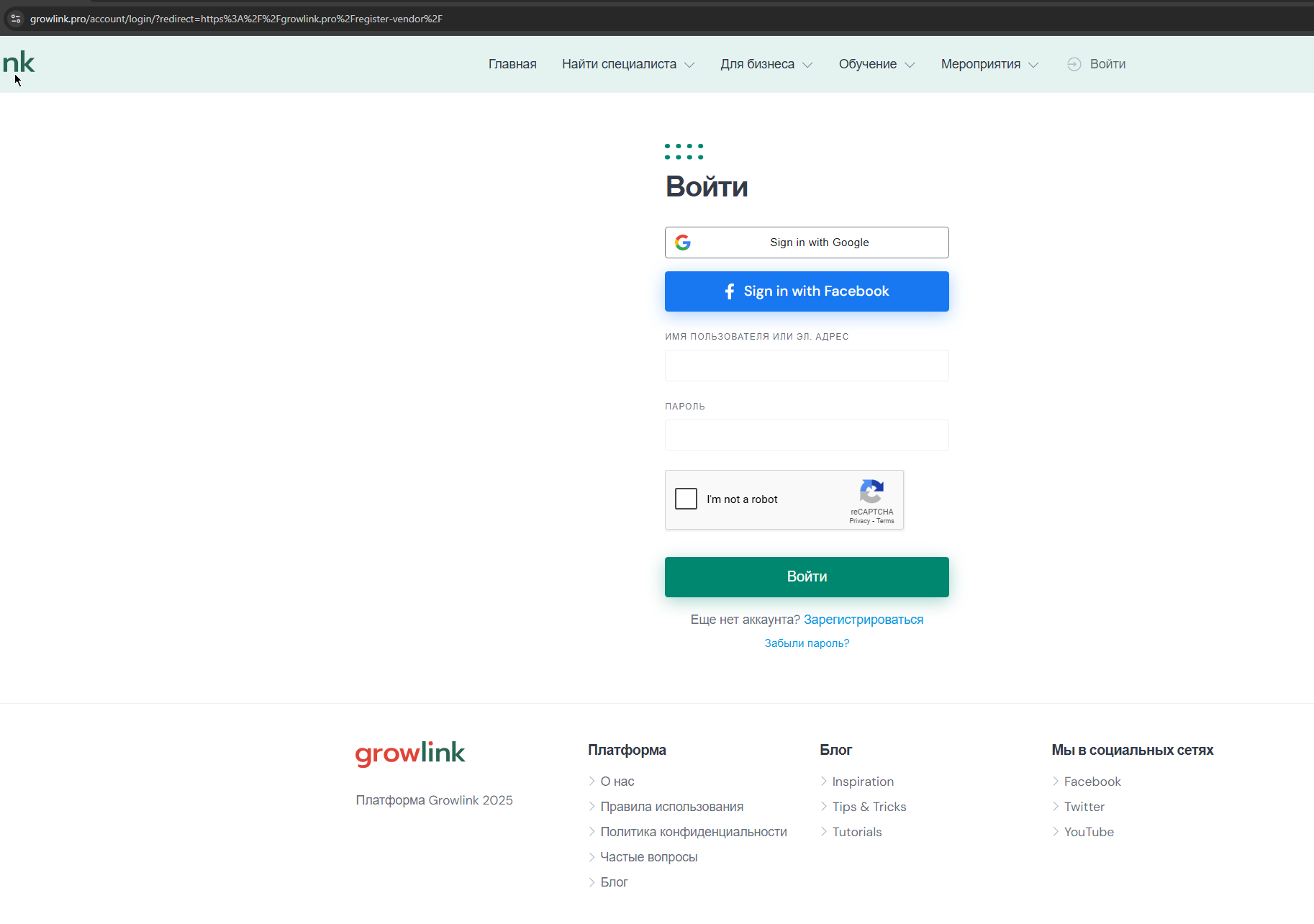
When I click on the direct link /register-vendor to register as a vendor, I am taken to the login page, where I am asked to register in one more step. I don’t see the vendor registration form. Please tell me what I am doing wrong. My website is https://growlink.pro
Sorry for the delay, and thank you for your patience. The initial registration form is the same for all users. Once you log in or sign up [which is the same process with Social Login], you’ll be taken to the “Complete Profile” step where the vendor-specific form appears.
If this step gets skipped for any reason, please ensure you have at least one required field set up for vendors. You can do this by adding custom attributes in the Vendor tab, or by using a code snippet to make default vendor fields [like First Name or Last Name] required.
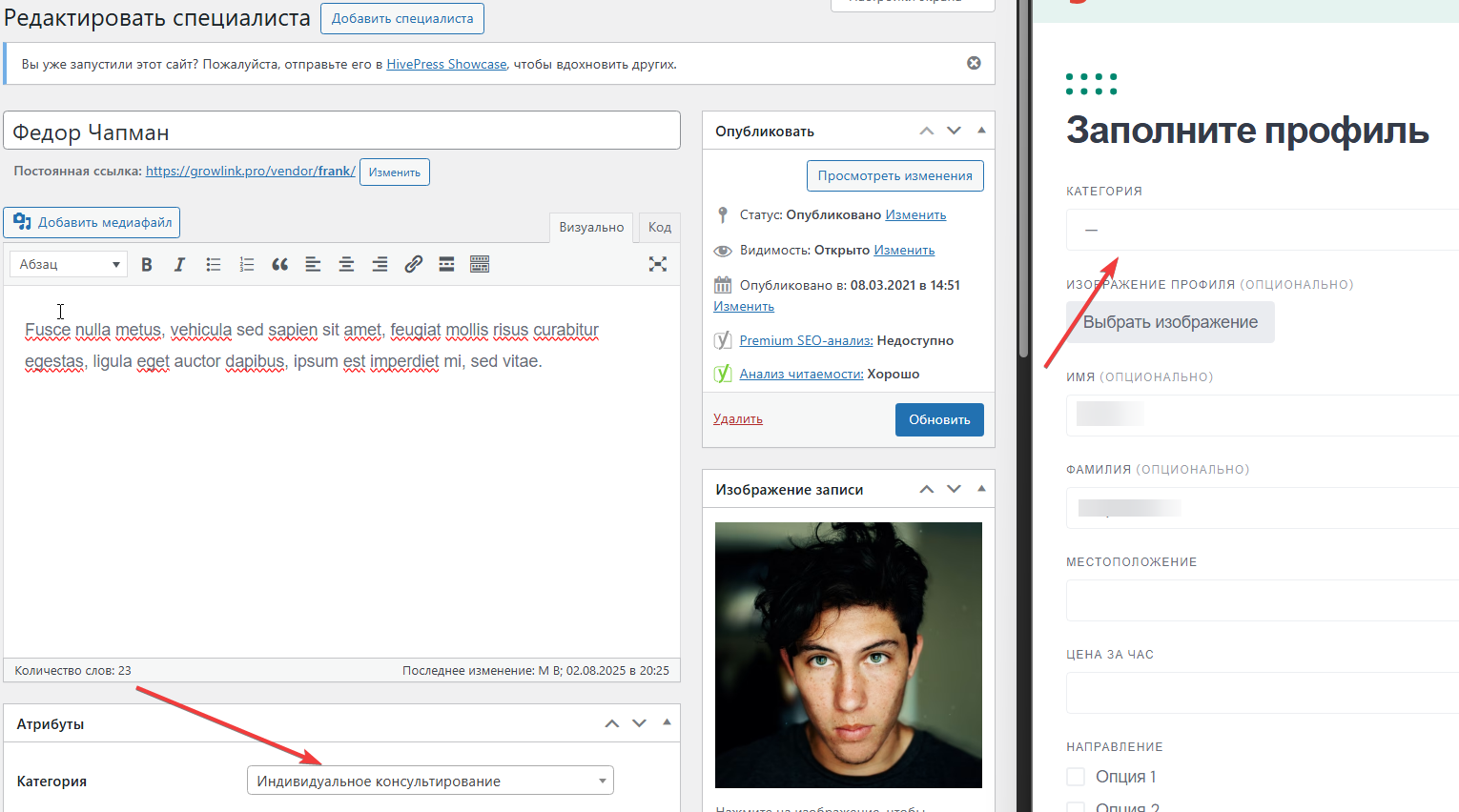
During vendor registration, there is a ‘category’ field, although I did not add it to the attributes. How can I hide it? Since it is not possible to select multiple categories for vendors, I want to categorize them differently.
One more question about vendors. I don’t want to create a separate thread, as there is already one on this topic, but the solution in it doesn’t work for me.
Is it possible to customize the page with the vendor data form via hivepress --→ templates? I create a new template, select the vendor registration template to change (that’s what I need, right?), and when I save it, the page with the vendor data entry form does not change.
If I need to make changes through the template file, please tell me the path to it.
If you intend to override the vendor template, please ensure you’ve chosen the correct template. If you want to change the template for Direct Vendor Registration, please use the Add Vendor (profile) template. If you want to override the template that appears after adding a new listing, please choose Add Listing (profile).
The issue may occur if another page was previously created for this template. Please note that each template can only be linked to one page. Please double-check that no other pages are currently connected to this template.
If the issue persists, please send us temporary WP access at support@hivepress.io, and we’ll check it. Please send only the access link (without login or password). You can generate a temporary link using this plugin.
It worked. The template in the trash folder was overriding “Add Vendor (profile)”. Thanks for the tip.
I have two more questions:
Now that I’ve overridden the template, how can I insert the default form into the vendor registration page along with my content?
2. I see that there is a direct vendor registration form that appears in a modal window. How can I insert it into the page using a shortcode or snippet?
If you’re overriding a template, please click Insert Block and look for the Form block [it should have the HivePress icon]. Alternatively, you can scroll through the options in the Template section to find template-specific blocks, where the Form block will also be listed.
Please note that the form shown in your screenshot is the general user form, not the vendor form. This form will appear automatically as the first step if the user is not logged in, and then the user will be redirected to the page you are overriding. The vendor form includes vendor-specific fields, such as first and last name, description, and more.
Make sure that at least one vendor field is set as required; otherwise, the form may be skipped since no input would be required. You can do this by marking a field in your custom vendor attributes as required or by using a code snippet to make first and/or last name required. Snippets for this can be easily found on the HivePress forum.
Please choose Add Vendor (profile) to override the mentioned template. For your reference, there are two Complete Profile pages when the direct registration option is enabled: Add Vendor (profile) for the /register-vendor URL, and Add Listing (Profile) for the /submit-listing URL.
This is a shared login page. You can override it using the Login User template, but please note that this page appears in various scenarios, such as when a user clicks “Add Listing” without being logged in.