How to display listings based on an attribute value on the homepage

Hi,

I’m building a directory website with HivePress and would like to offer paid homepage advertising/spotlight placements.

My requirement is:

  • I want to have 2 dedicated “Home Spotlight” positions at the top of the homepage.

  • Businesses would pay separately for these premium positions.

  • I need to be able to manually select which listings appear in these 2 positions.

  • Regular vendors should not be able to select or assign themselves to Home Spotlight.

  • I also don’t want “Home Spotlight” to appear as a normal public listing attribute/filter.

  • Ideally, I would like to create a homepage Listings block that displays only the 2 listings I have selected.

  • The remaining 8 homepage positions can use HivePress’s normal Featured Listings functionality.

I noticed that the HivePress Listings block allows filtering by Category, Region, Featured and Verified, but I don’t see an option to filter the block by a custom listing attribute.

What is the recommended/native HivePress way to achieve this?

Specifically, can I:

  1. Create a hidden/internal category such as Home Spotlight and restrict vendors from selecting that category, while allowing the admin to assign it to selected listings?

  2. Use that category in a Listings block to display only those selected listings?

  3. Or is there another built-in HivePress feature for manually selecting specific listings for a homepage block?

  4. If this requires custom code, what would be the recommended approach?

I’m using the current HivePress plugin and the HivePress Memberships extension.

Thanks!
Thanks for your message — our team will reply shortly.

In the meantime, you can also get instant help from our AI Assistant, familiar with all the docs and solutions we’ve shared over the years.

Hi @krishnakumar,

I’m not HivePress staff - just trying to help in the meantime.

The good news is you can do all of this with HivePress as it comes, no custom code needed for the display side.

The reason you can’t see your attribute in the Listings block is that HivePress only offers an attribute as a block option when it’s marked Filterable (or Searchable) and its Search field type is set. Miss either one and the option never appears, which is almost certainly what’s happened here.

1. Create the attribute

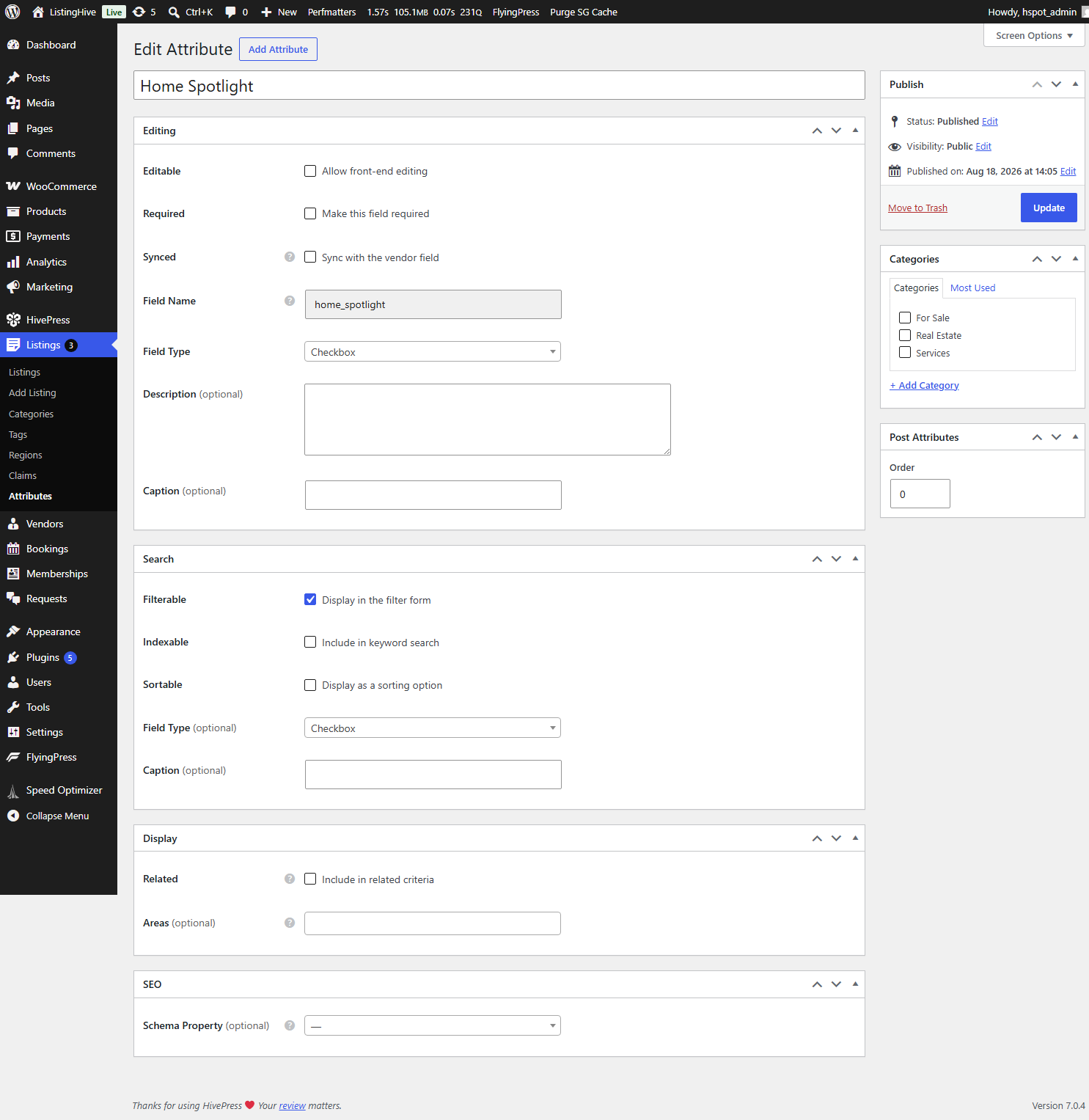
Go to Listings → Attributes → Add New and call it Home Spotlight.

Under Editing, leave “Allow front-end editing” unticked - this is the important one, as it keeps the field out of the front-end listing form entirely, so vendors can’t select it themselves. Set Field Type to Checkbox.

Under Search, tick “Display in the filter form” and set Field Type to Checkbox as well. This is what makes the option appear in the block.

Under Display, leave Areas empty so it never shows on the listing card or page.

2. Tick it on the listings you want

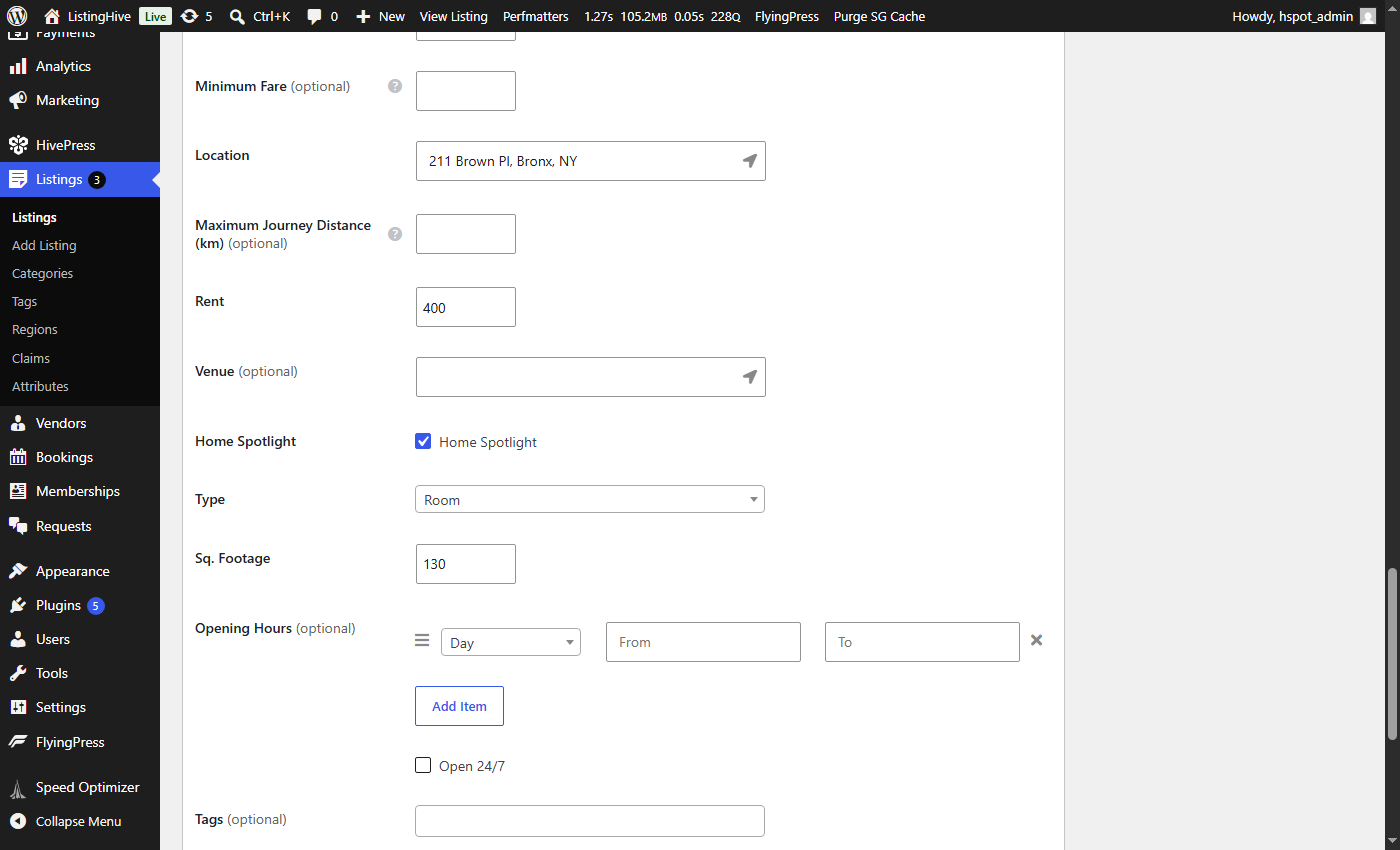
Because it isn’t front-end editable, the tickbox only appears when you edit a listing in the WordPress admin, in the Attributes box. Vendors never see it.

3. Add two Listings blocks to your homepage

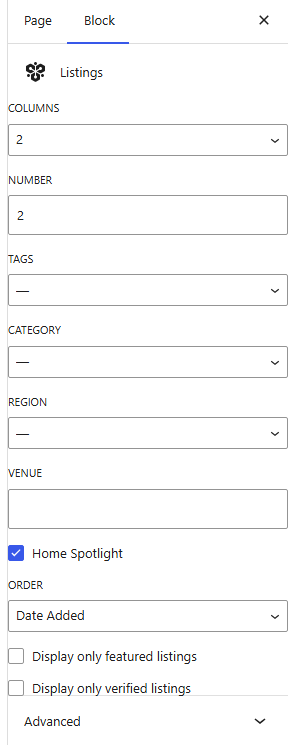
The new option now shows in the block sidebar, just above “Display only featured listings”:

  • First block - Columns 2, Items 2, tick Home Spotlight
  • Second block - Columns 4, Items 8, tick Display only featured listings

Shortcodes work too, if you prefer:

[hivepress_listings number="2" columns="2" home_spotlight="1"]
[hivepress_listings number="8" columns="4" featured="1"]

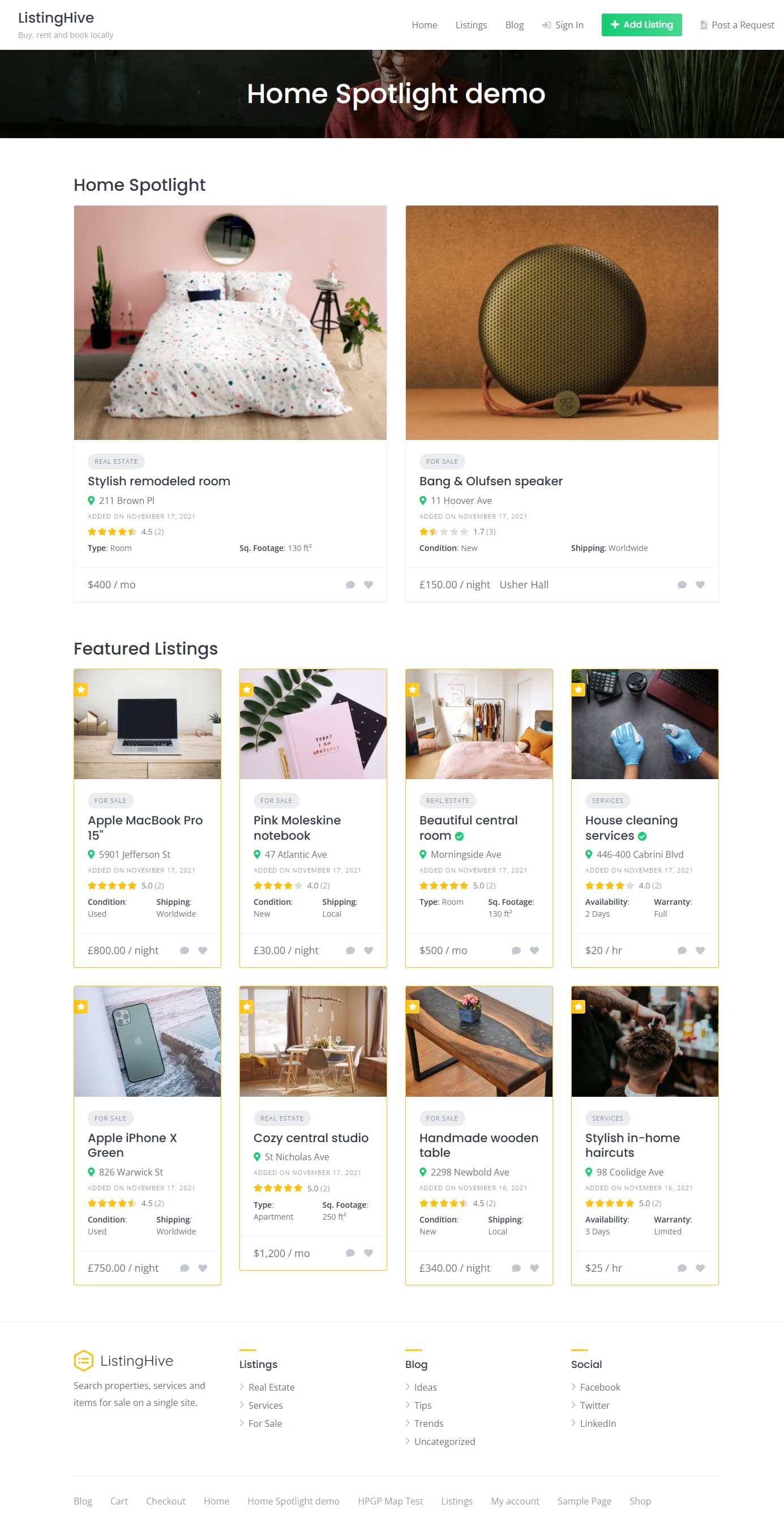
Here’s the result on a test site:

A few things worth knowing

I’d avoid the hidden category idea - categories have no “hidden” setting, so it would still appear in category lists and vendors could pick it when submitting.

Ticking “Filterable” also puts a Home Spotlight checkbox in your listings page filter sidebar. If you’d rather it wasn’t there, this removes it:

add_filter( 'hivepress/v1/forms/listing_filter', function( $form ) {
	unset( $form['fields']['home_spotlight'] );
	return $form;
}, 1000 );

Don’t mark your two spotlight listings as Featured as well, or they’ll show up in both blocks. I did exactly that on my test site and had one listing appear twice before I spotted it.

The “limited to 2” part is handled by the block rather than the data - nothing stops you ticking the box on five listings, the block simply shows the first two.

Lastly, on the paid side - there’s no built-in way to sell a custom attribute like there is for Featured, so you’d be ticking the box yourself once someone has paid, and unticking it when their term ends. That matches the manual selection you described, so it should be fine, but it’s worth knowing there’s no automatic expiry. If you later want it self-serve and expiring on its own, that’s the point where a custom extension would start to earn its keep.

I hope this helps!

Cheers,
Chris :victory_hand:

3 Likes

Hi,

The solution Chris suggested is the right one.

You can also consider using the Verified value for listings. As far as I understand from your description, you’re currently using Featured Listings, but this is not necessarily related to paid promotion. The Verified checkbox is available only to administrators and can be used to filter listings in the Listings block by default.

Just a reminder that Featured Listings have their own sorting logic on the listings archive page, which means that featured listings are always displayed at the top of the search results.

If you don’t need this behavior and only want to display specific listings on the homepage, you can use a custom checkbox attribute or Verified instead.

Please also note that if you decide to use a custom attribute or the built-in Verified value, you’ll need to manually assign the value to the listings. With Featured Listings, the listings will automatically appear in the relevant Listings block once a vendor is paid for it [if you explicitly configure it to display featured listings].

1 Like

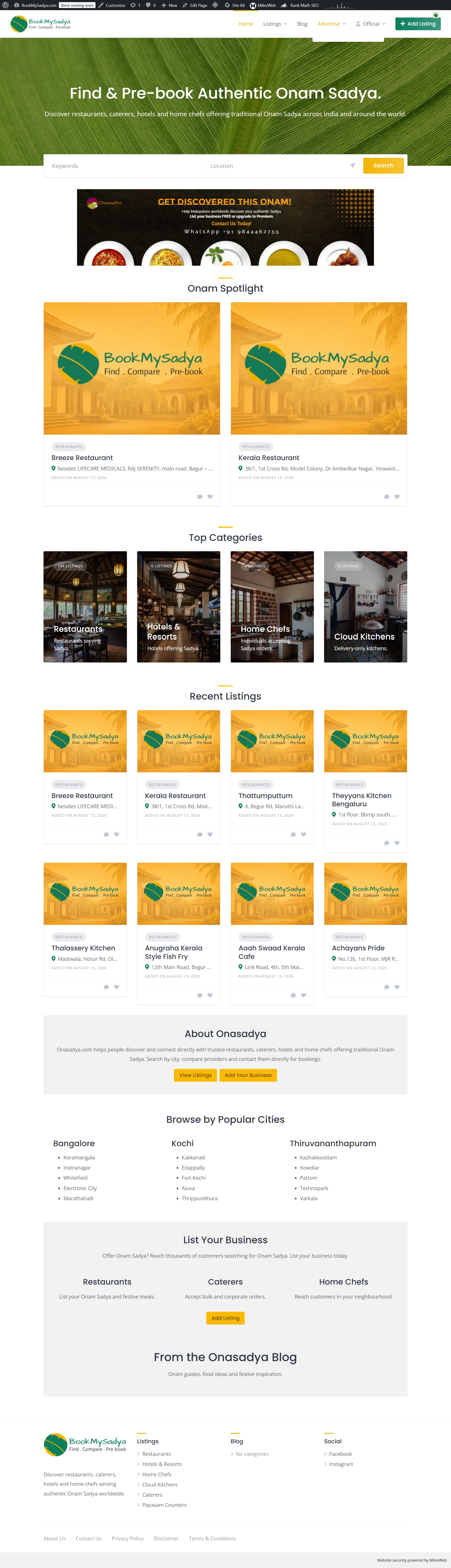
Hi Chris, a hell lot of thanks! I will try this. @kseniia the purpose is to give exposure to premium clients on homepage. I am planning two sections here as I have shown in the screenshot. First two are for super premium homepage display and another 8 slots are for premium homepage display. Featured will come inside listing only. When someone search for listing on xyz location, featured listings for that particular location (region) should come. Hence there will be four plans - Free, Featured, Premium, and Super Premium. Thanks again both of you.

2 Likes

Thanks for the details.

Just keep in mind that featured listings are usually pinned to the top of search results, making them more prominent.