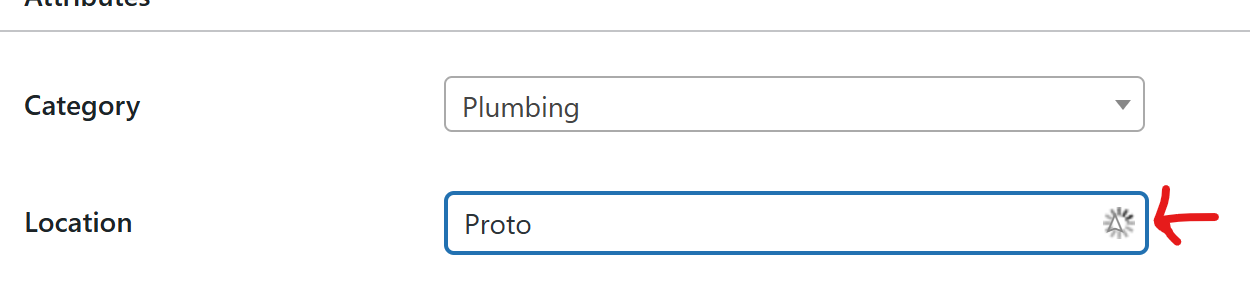
I have set up Geolocation with API key.
Enabled it for Vendors and Job requests.
Question 1
If I try to add a location in the vendor’s profile from the front end by typing a keyword (for example, “Portugal”), no location suggestions appear.
However, if I manually enter the full location — “Portimão, Algarve, Portugal” — and press Enter, it does save.
The second issue is that when I click on the saved location from the vendor’s profile (as a user), the link doesn’t open the correct place. It redirects to the map, but not to the specific location that was saved.
Q.2
Why is the map not showing on vendor’s profile page andthe overview of all the vendors page?
Please make sure that you configured maps correctly [added two keys to the settings and so on]. Please follow this guide to check all the steps: How to get a Google Maps API key - HivePress Help Center. The second issue is likely related to the fact that the address is manually entered; it should be selected from the dropdown.
If you made a custom template for this page, please make sure to add the map block to it. It’s also possible that if the maps are not configured correctly, the page won’t be generated. Please make sure to follow the guide again.
Please make sure that the Places API is enabled for your map.
I don’t have to put both keys if I enabled Regions, then only I have to create secret key this is what is mentioned in provided link (If you also enabled Regions, please create a second API key without HTTP restrictions and set it in the Secret Key field.)
I have only the Google Maps api Key
So whenever I’m trying to add any location from the front end as a vendor or as a customer, it doesn’t save my location.
E.g: I type in this field of location (prto)and click on the right side icon of location, then the (prto) location disappears, even if I click anywhere, then it also disappears.
If you’re using the Regions feature [in other words, “if you also enabled Regions”], you need to create the second API in the Google Cloud Console, since the secret key is used to generate regions. Also, please make sure that all the necessary APIs [Places API (New), Geocoding API, and Maps JavaScript API] are available for the API key.