Greetings everyone,
How can I modernize the ExpertHive theme? I’ve tried using Opus 4.8 by providing the theme and plugin files, but the design adaptation fails…
Hi @shayanreyes,
If you can provide a few examples of what you mean by “modernize,” someone in the community (or myself) should be able to assist you further. What exactly are you looking to change, update, add, or remove? The more details and specific examples you can give, the better we can help.
Cheers,
Chris 
Hi,
Thanks for your reply.
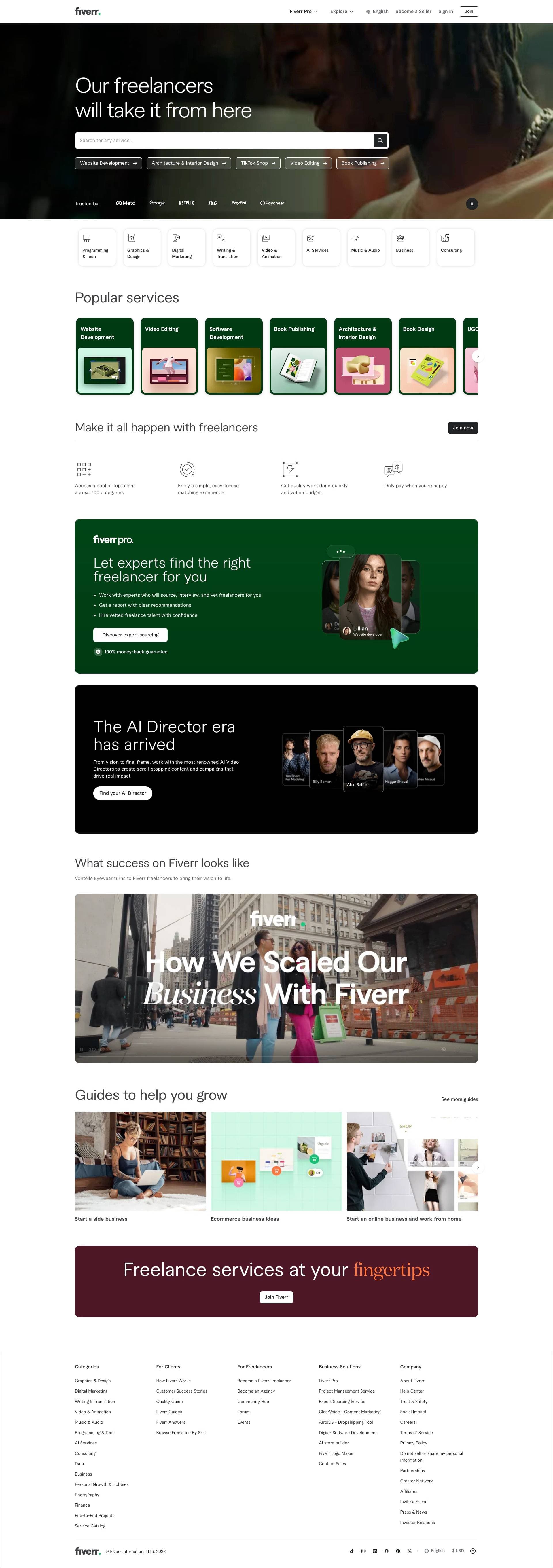
By “modernize,” I mean updating my website to have a cleaner, more professional, and more contemporary look, similar to Fiverr’s current homepage.
Specifically, I’m looking for:
-
A cleaner layout with more white space.
-
Modern typography and color palette.
-
Better spacing and alignment between sections.
-
Improved cards, buttons, and hover effects.
-
A more polished hero section with clear calls to action.
-
Smooth animations and transitions.
-
A fully responsive design for mobile and desktop.
-
Better UX while keeping the existing functionality.
I’ve attached a screenshot of Fiverr’s homepage as a visual reference for the style I’m aiming for. I’m not looking to copy Fiverr exactly, but to achieve a similar modern, clean, and premium appearance.
Thank you!
Hi @shayanreyes,
Thanks for the extra details and the screenshot! That gives a much clearer picture of what you’re aiming for. A clean, premium look like Fiverr is a great goal.
Achieving this “Fiverr look” with ExpertHive really depends on how comfortable you are customizing WordPress. Because ExpertHive is built on a specific system (HivePress) to handle listings and vendors, you have to be a bit careful when changing layouts so you don’t accidentally break that core marketplace functionality.
Here is a breakdown of how you can approach these updates safely:
- A cleaner layout with more white space.
- Better spacing and alignment between sections.
- A more polished hero section with clear calls to action.
You actually have a lot of control over your homepage layout right out of the box. If you go to your WordPress dashboard and navigate to Pages, you can select and edit your homepage.
ExpertHive works seamlessly with the default WordPress block editor (Gutenberg). You can rearrange the default blocks, add “Spacer” blocks to create that breathing room/white space you see on Fiverr, and adjust your Hero section layout.
Tip: While plugins like Elementor or Kadence Blocks offer incredible layout tools, use them cautiously on a marketplace theme. It’s usually safest to use them only for static pages (like the Home or About page) rather than core dynamic pages like listing or vendor profiles, which ExpertHive controls.
- Modern typography and color palette.
You can change your site’s global fonts and accent colors without touching a single line of code. In your dashboard, go to Appearance > Customize. Look through the tabs there (usually under “Fonts” or “Colours”) to swap out your fonts for something clean and geometric (like Inter or Roboto) and set a cohesive color palette.
- Improved cards, buttons, and hover effects.
- Smooth animations and transitions.
To get custom hover effects or micro-animations on your theme’s default listing cards, you will likely need to use some custom CSS snippets. If you find a specific effect you love on a website, feel free to link it here! The community can often help write the specific CSS code you’ll need to paste into your Appearance > Customize > Additional CSS section. Alternatively, block plugins like Kadence do have some subtle animations built into their specific blocks if you use them on your static pages.
- Better UX while keeping the existing functionality.
User Experience (UX) can mean a lot of different things depending on the user. To give you the best advice here, what is one specific thing on your current site that feels clunky or difficult for a user to do? For example, is the search bar hard to find, or is the registration process too long?
Where to start?
I’d highly recommend starting in the Appearance > Customize menu first to tweak your colors and fonts. That alone will instantly make the theme feel more modern. From there, try editing the Homepage to add some spacers for that clean, white-space look.
Let us know how you get on with those, and we can dive deeper into the trickier bits!
PS: If your budget allows for it, you could also consider hiring a vetted HivePress expert to help achieve all of this, or perhaps even get them to create an entirely custom theme. The world is your oyster! 
Cheers,
Chris
Hi,
I believe Chris already addressed your request, but if you’re familiar with coding, you can create a child theme or use CSS snippets to customize the design.
The theme classes are well structured, so you can use your browser’s inspector tool or a plugin like YellowPencil to identify and modify the specific elements you want to adjust.
You can also try using AI tools to assist with customization, but it’s important to be precise and provide specific class names or elements to work with. Please note that for more advanced effects (such as smooth animations or transitions), you may also need to use JavaScript in addition to CSS.
Our themes are fully customizable, and you can see many examples in our Showcase section that demonstrate what is possible. Ultimately, it depends on your level of experience and how far you want to go with the customization.
You can start with CSS customization, as it’s usually the easiest approach and AI tools are quite effective for this type of work.
You can also use custom templates to add spacing, rearrange blocks, and adjust the overall layout structure.