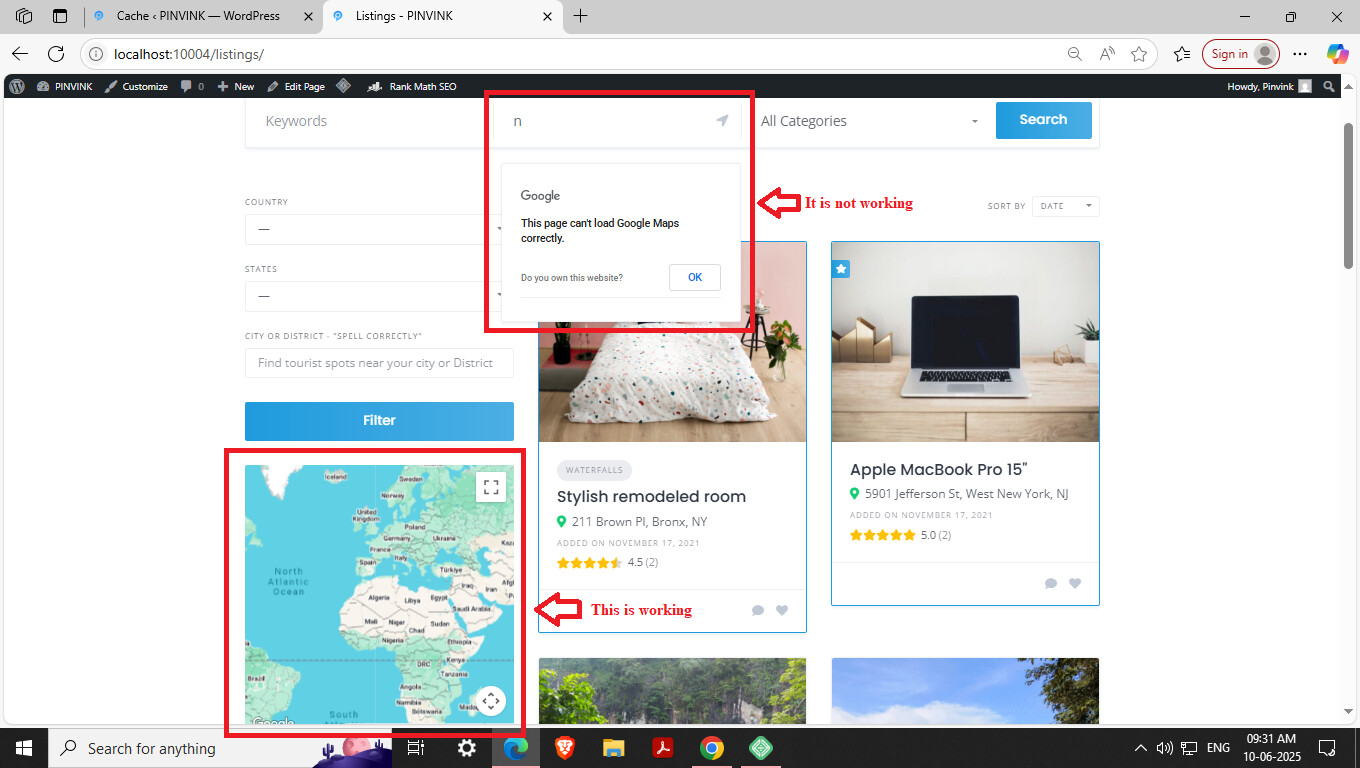
Hello, I am having a challenge with using maps in my TaskHive theme.
I got an API key from google maps which only works on some browsers but completely not on the phone.
I followed previous posts on this forum and switched to Mapbox as Ihor and Yevhen were advising others, but this has still not worked for me. How do I get help?
Please make sure you set up Geolocation correctly, you can check this doc How to set up Geolocation - HivePress Help Center
Also, please disable third-party plugins and customizations (if there are any) and check if this issue persists. If you use a caching plugin, make sure that caching is disabled for logged-in users.
If this issue exists, please send more details that may help to detect or reproduce this issue (e.g. a link to your site, screenshots, a list of installed plugins, or the error message you get).
“The geolocation on my website isn’t working. It’s displaying error, as shown in the reference image, even though all settings in the Google Maps API are properly configured.” Can anyone help me out with this.
However, in my case, the map is working correctly on the home page but not on the listing and category pages. All the settings are according to the documentations provided above and caching is disabled for logged-in users, yet the location is not displayed on the listing and category pages. How do I resolve this?
Please make sure that in your API key restrictions settings, you’ve added your website URL with an asterisk to allow the map to work on all pages. To do this, please go to your Google Cloud Console, select your API key, and under “Application restrictions” choose “HTTP referrers (web sites)”, then add your website URL with an asterisk at the end like this: https://example.com/*. The asterisk is important because it allows the API key to work on all pages of your website, not just the homepage, so without it the map might only work on specific pages.
If you have a minute, please rate HivePress on the WordPress repository or Trustpilot. Your feedback means a lot to us and makes a real difference in helping us grow.