So I have created an attribute and assigned it to the correct category.
I have created a basic template that displays a single item which was selected from a list.
All I want to do is to display that attribute at a place of my choosing within the template and therefore display it to the user when the single item is displayed.
Having looked at all the videos and documentation, I can’t see how to do this and I am sure it is so simple that there should be no need for coding or editing php files.
Here is a sample listing page created with my template https://thatchamtownradio.uk/listing/lyla-missing-since-12th-february so all I need to do now is to be able to add attributes to this template. As you can see at the bottom, I have tried but it just displays the attribute name and not its contents.
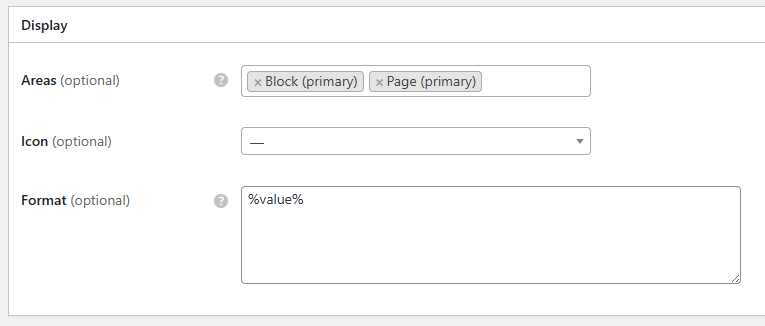
In the Listings > Attributes settings, make sure you’ve assigned the Display - Areas in which you’d like the attribute to appear - e.g ‘Page (primary)’.
In the Display - Format section, you can generally leave it as the default value of: %value%
Now, when you fill in the information on your listing details form, the %value% part will convert into whatever was typed in the field on the form.
Thanks and I get that. What I can’t understand is why it isn’t displaying it when I enter it in the template. As you can see from the link above, it just displays the name of the attribute and not what it contains.
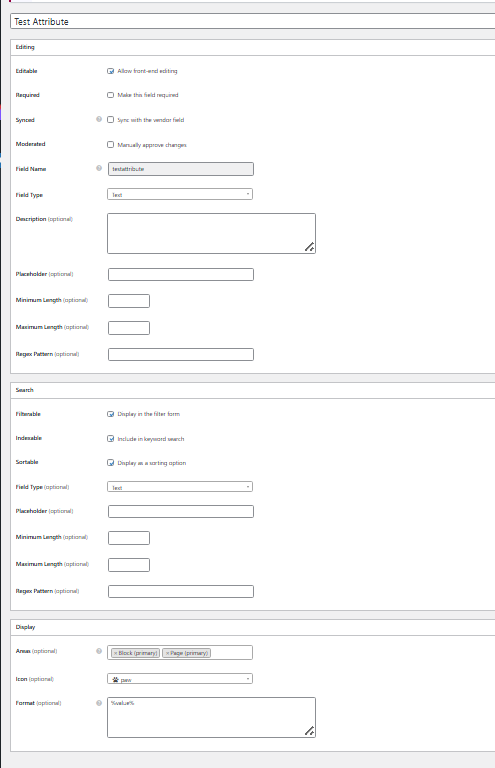
The attribute is set for primary block and primary page.
It surprises me that there is not step-by-step guide availabke. There is plenty of information on how to create an attribute but scant information about how to correctly use it in a template.
I’m not HivePress staff, but the team are aware some of their documentation is either outdated or lacking in detail, and these will be improved over time.
I had a look at the link you provided above, and as I can see %testattribute% on the page, it appears that you haven’t set-up the Attribute to render correctly in the back-end. As I mentioned above, you need to include %value% (literally written like that) in the Format (optional) section of the Display options. See below for an example:
When you’re editing or submitting the Listing Details form, you would simply enter the actual information you would like to display, like in the example below:
Then, when you view the live listing page, it would show the email address that I had entered in the form. (ChrisB@example.com) in my mock-up.
If you’re able to attach a screenshot of your Attribute settings and Listing Details form, either myself or someone else in the community are likely to be able to help.
You make a good point about the documentation. Maybe once we’ve solved this, I should append a step-by-step guide in this thread for others that will come after me also scratching their heads.
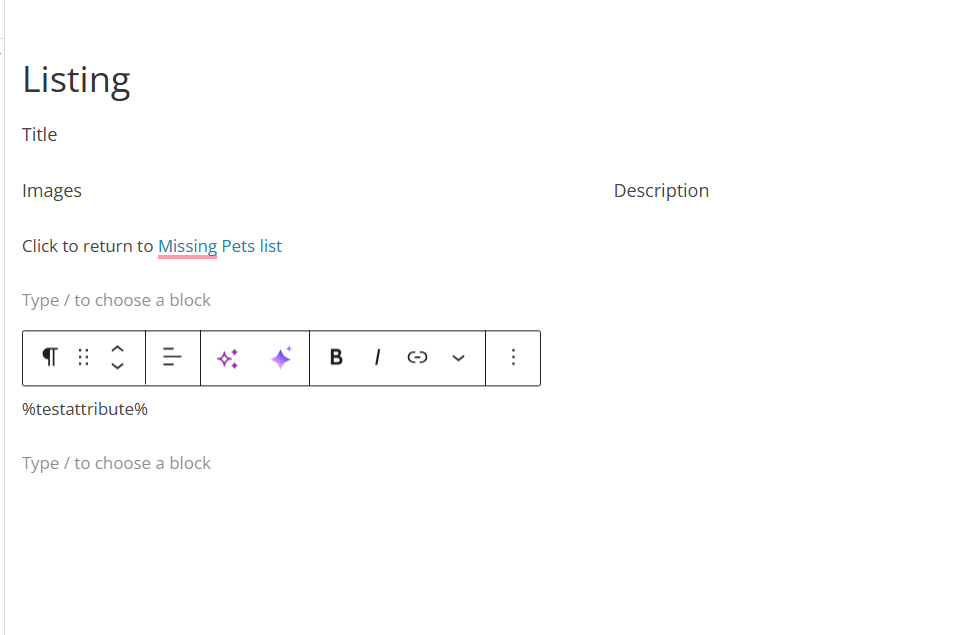
I’ve got it working! In so much that I have added a primary block and now the contents of %testattribute% is showing at the bottom of the lost cat display.
The issue that I have now is the formatting but at least the value for that cat record is showing somehow so it is progress.
To edit a listing in HivePress, you can do so via the back-end of WordPress via Listings > Listings, then you’ll be able to choose the exact listing you’d like to edit. If you scroll down to near the bottom of the page, you should find the test attribute field you’ve set up.
On the front-end of your website, you can also view the listing itself and click the ‘Edit’ tab button near the title which will let you update the listing details that way.
If you simply want to add your custom attribute to the listing submission form, you don’t need to use the HivePress > Templates option in the backend of WordPress. That’s for completely overhauling the design of a page.
(If you’ve already created an unnecessary template, you can just delete it and the default one will return.)
Yes it does help so thanks. If I don’t have a template, I find that the way in which the missing pets display is not very user friendly which is why I chose to use a template anyway. To be honest, it isn’t too bad the way it is now.
You’ll see that it now has the title of Title attribute %testattribute% when it should say what I originally put in what was Lyla missing since 12/02/2025
So I tried changing the written title in the Listings area in the back end and all that it does is replace it with Title attribute %testattribute% as soon as I update.
I at some point put %testattribute% actuall in the title and now I can’t change it back! Would you believe it?
Please make sure that the auto-generated title option is empty in HivePress > Settings > Listings > Title. Then you’ll be able to create an individual title for each listing.
I am fairly happy with the look of my lost cat display now.
However, when I go to the lost cats list, it always seems to be that the first cat in the list doesn’t get it’s picture displayed in the list. Also, I am finding in some of the listings when the first image does show up in the list of cats, when I then select that cat to display the whole listing, the picture doesn’t appear. It’s always the same individual cat listings where the picture doesn’t appear. I have tried swapping the picture with a cat picture that works in another listing and still it doesn’t display. Should I create a second thread for this?
Please make sure the image is uploaded to this listing [it appears to be empty]. If the image has been uploaded, please delete it and try re-uploading it. Also please ensure that the customization wasn’t made to this page. If not, please try deleting this listing and creating a new one.
FYI. I have fixed the issue with the pictures. I discovered by accident that if there is 1 picture, it won’t display. If there are 2 or more pictures, it will. How is that?
So the remaining issue is that if you look at our listings page:
the system won’t allow me to post the link
you will see that the first picture is missing. The problem is not due to the listing however, it seems to be the first item in the list doesn’t get the photo displayed. I know this because I tempprarily put in a sort field and the problem was always to do with the first item in the list.
We checked the site and it appears that the first listing doesn’t have an image, although there should be a gray placeholder image even if no image is set. Please make sure you haven’t customized anything related to this. If the image is still missing, we recommend temporarily switching to a different theme (even the default WordPress theme) to see if the placeholder appears. It’s possible there’s a conflict with a third-party theme, as we weren’t able to reproduce the issue on our side.


 Cleo".